
States
A state is a saved look of the scene: the camera angle, the light, the background, the materials and more. Save a few while you work, and you can jump between them with one click, compare them, and come back to the one the client liked.
The States strip sits between the viewport and the panels.
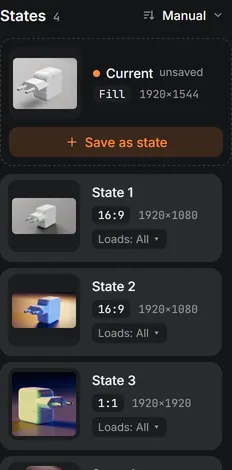
Saving and using states
- The Current card at the top of the strip is always there and shows what is on screen now. Save as state keeps it as a new state with a thumbnail; the new state goes first in the list, under the Current card.
- Click a thumbnail (or Load state) to bring that look back.
- Update replaces the state with what is on screen now.
- × deletes it. Shift+click the × to skip the question.
- Click the name to rename a state, and drag a card (or the grip at its top right) to change the order. From the keyboard, focus a card, press Space to lift it, Up/Down to move it, Space to drop it, Esc to cancel. Current and Unsaved work stay first.
- The order button (top right of the States list, next to the count) chooses how the saved states are listed: Manual (the default, the only order with drag handles), Newest first or Oldest first (the card then shows the date instead of the size), A to Z, Z to A, or Grouped by format (a title with the number of states above each frame shape). The choice is saved with the project. Dragging a card under any other order switches the list to Manual. Current is always first and never sorted; a new state goes right below it and then follows the chosen order.
States are kept with the project: in a .qproj file and in a cloud project. The start scene of the lab comes with a few to try.
What a state brings back
Under each state, Loads: All ▾ chooses which parts of it come back when you click it. Untick the ones you want to keep as they are now:
| Part | What it covers |
|---|---|
| Camera | The angle, position and focus, the lens and the depth of field |
| Light | The lighting, its HDRI, intensity and rotation, and the lights of the model |
| Background & floor | Background color, blur, transparency and the floor |
| Materials | All material edits |
| Model turn, tilt & frame | How the model is turned and tilted, and the frame of an animation |
| Frame & guides | The render frame and the crop guides |
| Color & effects | Tone mapping, exposure, bloom, vignette and grain |
For example, a state that loads only Light works as a lighting preset for this project: it changes the light and keeps your camera angle. One that loads only Camera jumps to a saved angle and keeps the current light.
The Unsaved state
When you bring back a state while the scene on screen has changes that are in no state, the lab keeps them first as an Unsaved state at the top of the strip. Clicking a state never loses your work: click the Unsaved state to get it back. Ctrl+Z also undoes the click on a state, camera included.