
Light
Light makes a product shot. The lab lights the scene with an environment: a picture of light all around the product, the way a photo studio surrounds it with softboxes and reflectors. You choose the environment in the Light tab, or with one click from the HDRI and Lighting shelves under the viewport.
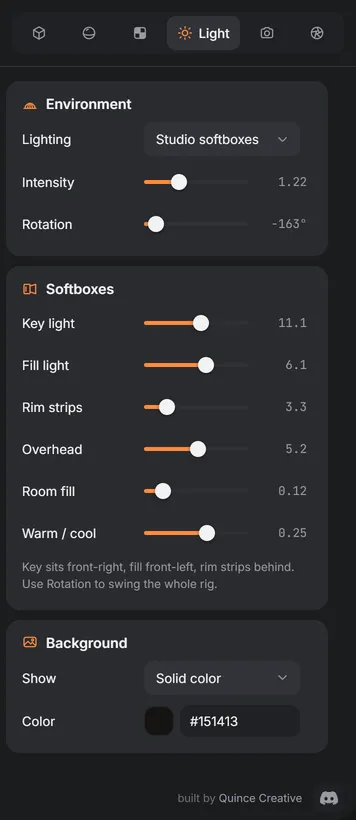
Lighting
The Lighting menu at the top of the Light tab sets the kind of environment.
| Choice | What you get |
|---|---|
| Studio softboxes | A product photo studio built into the lab: a key light, a fill light, two rim strips, an overhead light and room fill, each with its own slider. The best start for most products |
| Overcast dome | Soft, even light from all around, like a cloudy sky. Few reflections, very gentle shadows |
| Sky gradient | A light blue sky above a dark ground, for outdoor-looking shots |
| Your HDRI (.hdr / .exr) | A real panorama of light that you open from a file. See HDRI |
Intensity makes the whole environment brighter or darker. Rotation turns it around the product, so the reflections and the highlights move without moving the camera. Double-click a slider to put it back to its default.
Studio softboxes
With Studio softboxes chosen, the Softboxes group sets each light on its own:
- Key light: the main light, front-right of the product. It gives the shape and the brightest highlights.
- Fill light: front-left, softer. It opens up the shadow side.
- Rim strips: two tall strips behind the product. They draw a bright line along its edges and separate it from the background.
- Overhead: a large light from above, for top surfaces and a soft shadow under the product.
- Room fill: a little light from everywhere, so nothing goes completely black.
- Warm / cool: shifts the color of the light towards warm (orange) or cool (blue).
Use Rotation to swing the whole rig at once, for example to move the key light to the other side.
Tip: glossy and metal products show the lights as reflections. Turn Rotation slowly and watch the highlights slide along the product until they draw its shape.
HDRI
An HDRI is a 360° photo with the real brightness of every light in it. It gives the most natural reflections.
- The HDRI shelf under the viewport has studio HDRIs ready to use, each shown as a pair of balls lit by it. Click one to light the scene with it. The first cards open an HDRI file of your own and put the built-in softboxes back.
- Open HDRI file in the Light tab (or Load your HDRI on the shelf) opens your own
.hdror.exrfile; you can also drop it onto the viewport. It is added to the shelf as one of yours and kept in this browser, so it is there next time. Removing it from the shelf does not touch the file on your computer.
Lighting presets
The Lighting shelf under the viewport keeps whole lighting setups: the environment, its intensity and rotation and every softbox slider. A preset changes the light only; the camera, the background and the materials stay as they are, so it works on any shot.
- Click a card to apply it.
- Save current light keeps your current light as a new preset in this browser. Use the × on one of yours to delete it.
Lights in the model
Some model files bring their own lights, for example the bulb of a lamp. When they do, the Lights in the model group lists them. Switch each one on or off and set its Intensity; 100% is the value the file has.
Background
The Background group sets what is seen behind the product. It does not change the light.
| Show | What you get |
|---|---|
| Solid color | A plain color of your choice behind the product. The floor still catches the light and the shadow |
| Environment | The environment itself, as in a photo. Blur softens it so the product stands out |
| Transparent (PNG alpha) | No background: the saved PNG has a transparent background, ready to place on a website or in a layout |
With Transparent, Floor shadow keeps a soft shadow under the product in the PNG, as semi-transparent black, whatever the light in the scene is. Shadow strength sets how dark it is and Shadow blur how soft. The shadow is worked out when the render is finished, with two quick extra renders of the floor.